
Jump to instructions for:
- Assigned Delivery Method with Scheduled Delivery
- Assigned Delivery Method with Immediate Delivery
- Anonymous Delivery Method
IMPORTANT:
- Your survey MUST BE PUBLISHED in order to Assign it. See this article on how to publish a survey.
- When proceeding with the Assigned Delivery Method, you will need to configure the Assign email. This communication will contain the login credentials for the participant. This communication, is part of the System Generated Emails and can be customized according to your preferences. You can adjust these settings through the default configuration settings or the specific survey attributes. For more details on how to modify these settings, please click on the provided hyperlinks.
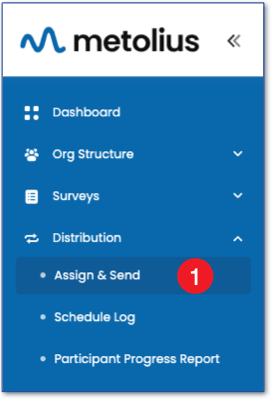
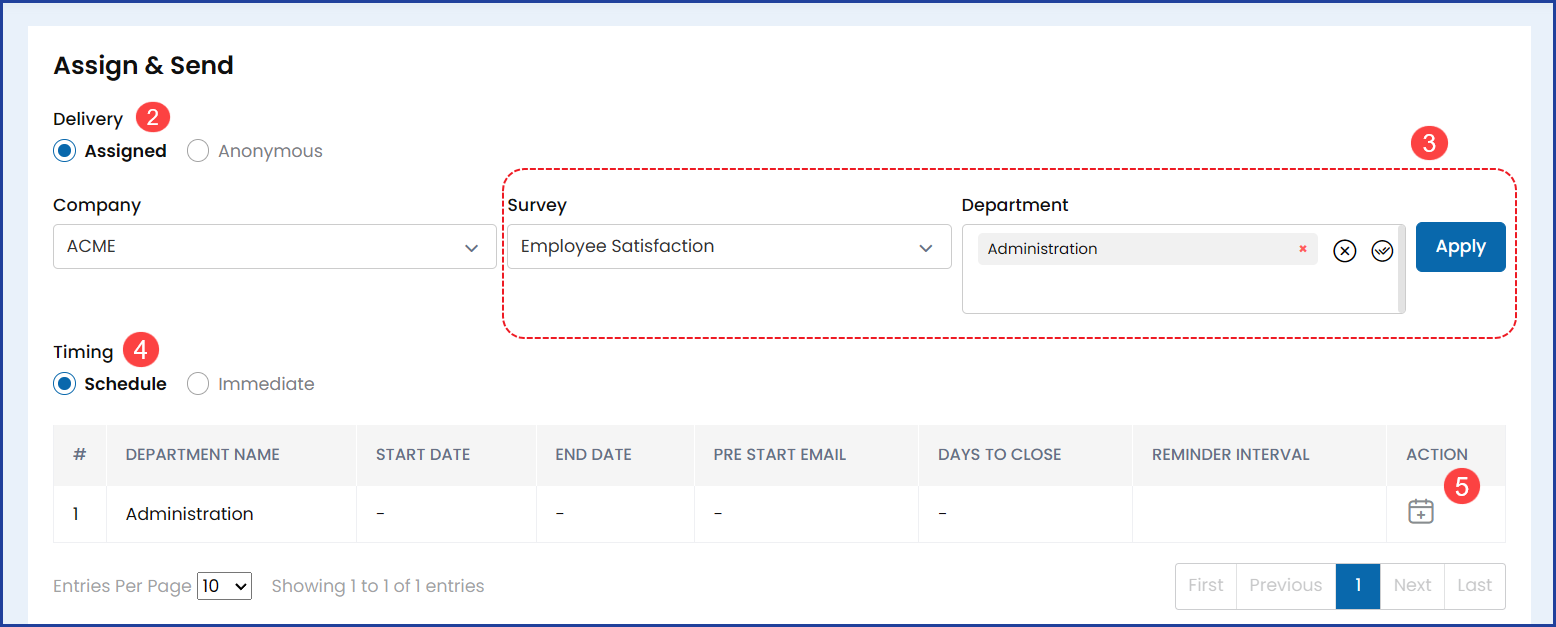
- On the left side navigation, expand the Distribution menu and choose Assign & Send.
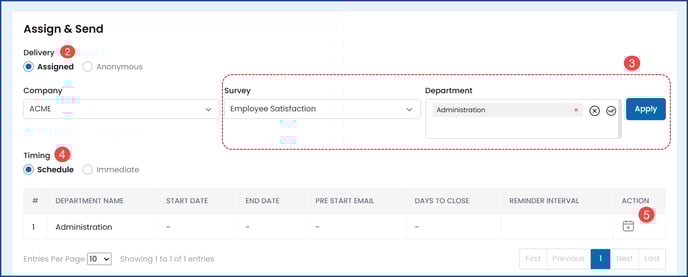
- On the Assign & Send page, choose a delivery method.
Note that Assigned is selected by default and that this option requires that you add participants to the system using their name, email address, and other attributes through Participant Management under the Org Structure menu. These participants will receive a link to take the survey by email. - Select a Company (Enterprise plan only), Survey, and Department from the dropdown menus, then click Apply.
- Next, chose the Schedule timing method. Note that scheduling a survey is only available on the Professional and Enterprise plans.
- Click the calendar with plus sign icon under the Action column.
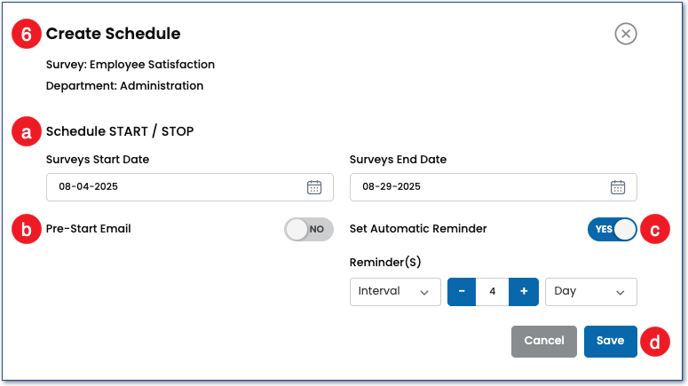
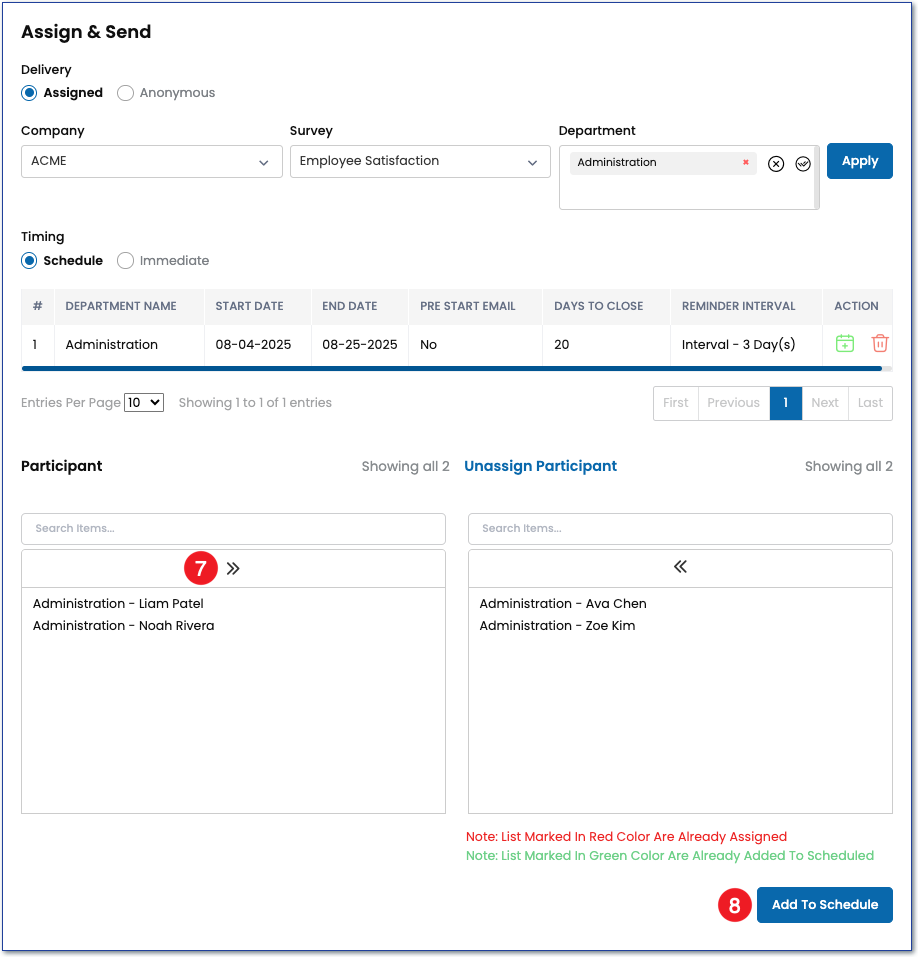
- On the Create Schedule dialog box, choose the following:
- A start and end date for the survey. These dates tell the system when to make your survey active and inactive to its assigned participants.
- Whether or not to send a Pre-Start Email communication and how many days that email will go out before the assignment email. This email can be configured in the survey settings under the System Generated Emails section.
- Setting up Automatic Reminders and the interval they will go out to the participants who have not started or completed the survey. Two options are available for automatic reminders, either on an Interval, where the reminders go out every X number of days or weeks chosen, or only once on a chosen date.
- Cancel or Save the schedule for the assigned survey.
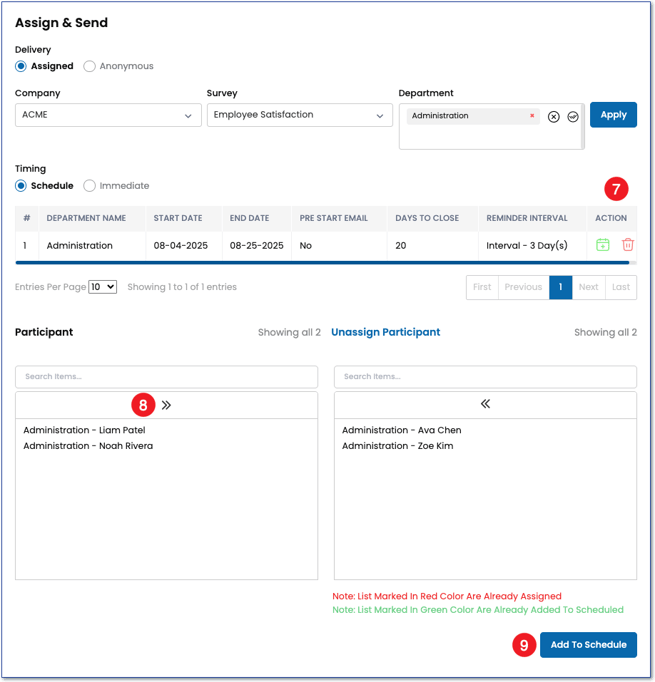
To edit or cancel the schedule created, under the Action menu, click the calendar icon or trash can icon respectively next to the department you wish to edit/cancel.
- To assign participants to the survey, click on the right facing double arrows to move all participants at once from the left box to the right box. Or double click on one participant to move them individually. You can also filter the participants to aid in your selection using the search boxes above the participant box.
- Click the Add to Schedule button at the bottom of the page.
Assigned Delivery Method with Immediate Delivery
If sending immediately is the desired timing method, follow steps one through seven above. When you reach step four, under Timing, choose Immediate instead of schedule. Step eight, move participants. Step nine, confirm the action by clicking Add & Send Now in the bottom right hand corner to send the survey to its assigned participants immediately.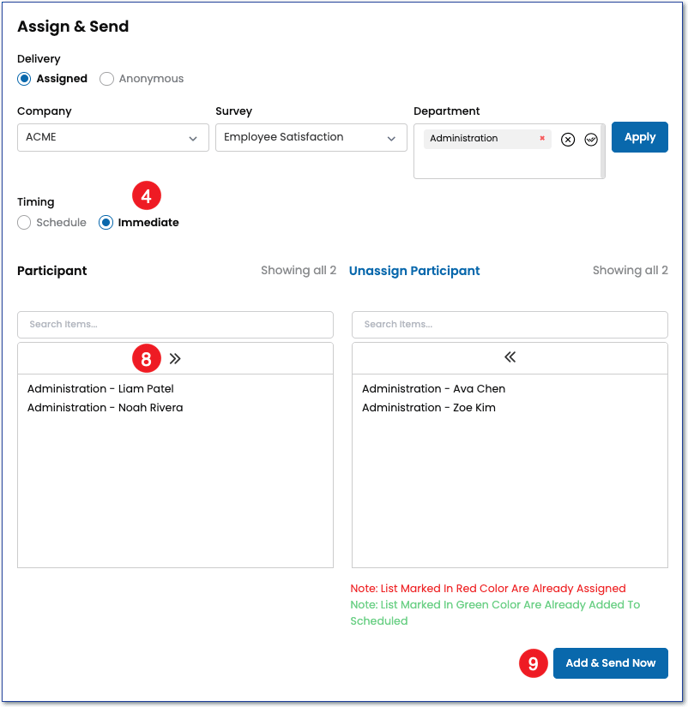
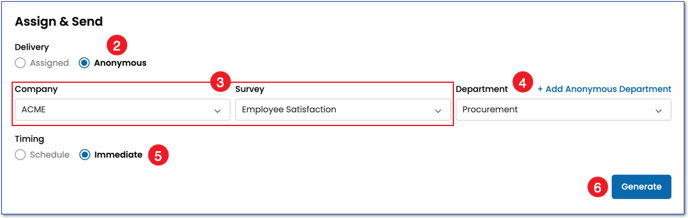
- On the left side navigation, expand the Distribution menu and choose Assign & Send.
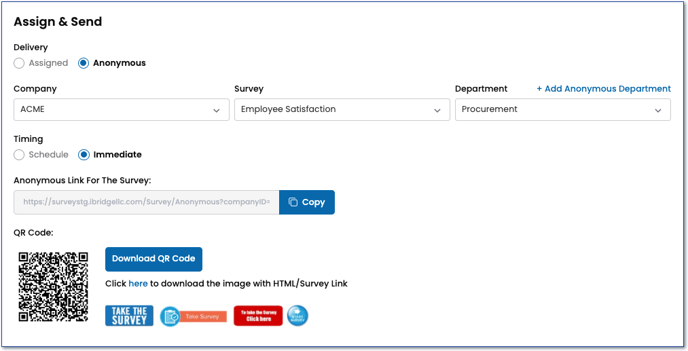
- Choose Anonymous as your delivery method.
- Select a company (Enterprise plans only) and a published survey from the dropdown menus.
- When choosing an Anonymous delivery method, you can choose and existing department that you have created. Or establish an Anonymous Department before generating the web link/QR code that the participants will use to access the survey by clicking on "Add Anonymous Department" to the right of the Department dropdown and name the department.
- Under Timing, choose Schedule or Immediate. When an anonymous link is associated to a schedule it will allow and prevent responses based on the start and close dates of the survey schedule. An anonymous link using immediate timing will allow responses as soon as the link is generated, and will stop allowing responses when the survey is closed manually. See this article on how to Close a survey.
- Click the Generate button.
- A web link and a quick response code (QR Code) to the anonymous survey will populate. These can be used in emails, webpages, posters, and other means of presentation to the community that you intend to take the survey.
What is an Anonymous Department, and how many should I use?
An anonymous department allows you to segment your survey respondents while ensuring their anonymity during the survey process. For instance, if your organization has multiple office locations with a limited number of employees at each site, participants may feel more comfortable completing the survey if they are not directly asked about their specific location with a demographic question. By establishing an anonymous department for each office, you can generate unique web links for each location, ensuring that only individuals from the respective office can access the survey. This approach enhances participation while maintaining confidentiality.
- One Department will keep all intended participants in one group.
- Multiple Departments will divide your participants into different groups.
- IMPORTANT: At least one anonymous department is required to generate the weblink/QRC.
The Case for a Single Anonymous Department
Utilizing a single department is typically recommended when you include demographic questions in your survey. These questions help categorize responses based on various criteria such as age, gender, location, and job role, allowing you to filter and analyze your response data effectively. We recommend using one department when all needed segmentation will be created by the demographic questions you ask in your survey.
However, even if your survey includes demographic questions, you may still find it beneficial to create additional group segmentation through multiple anonymous departments.
The Case for a Multiple Anonymous Departments
Using multiple departments for anonymous delivery creates an additional group segmentation that is not captured by the survey’s demographic questions. A common reason is to exclude a certain demographic question to enhance participant engagement and response rates, given in the example above.
NOTE: Anonymous departments can only be used to add one additional group segmentation or category, for example, location only, not location and job role.
IMPORTANT: Each participant should access the survey using only one web link or QR code (QRC). Providing multiple links to the same group can inadvertently allow participants to submit duplicate responses. Therefore, it is advisable to use anonymous departments solely for introducing one additional group segmentation, such as location.
Each anonymous department created will get its own unique web link/QRC. Therefore it's important to provide the correct web link/QRC to the intended groups.