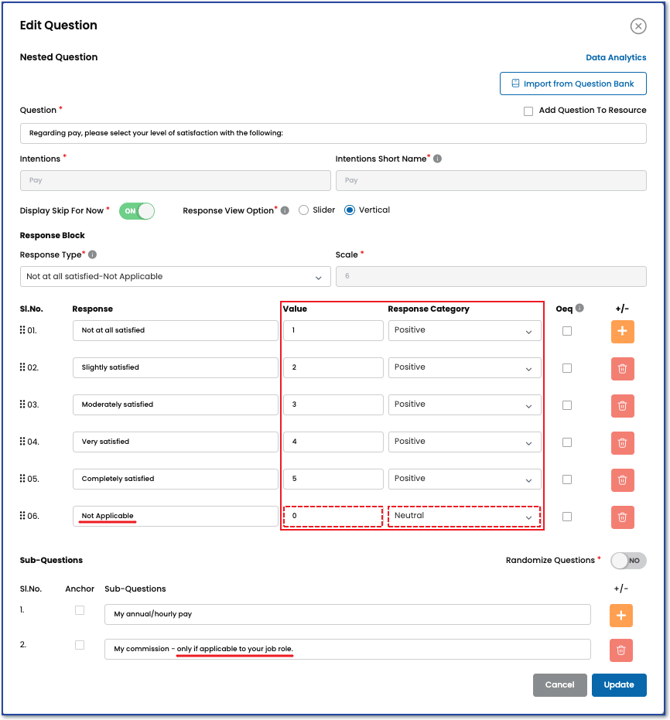
Positive - Choosing a positive response value adds the assigned value to the total score; Effectively increasing the overall value.
Neutral - Choosing a neutral response value excludes the value from the score and the overall value is not affected.
Negative - Choosing a negative response value subtracts the assigned value from the total score; Effectively reducing the overall value. Note that this is an advanced feature and most surveys do not need a negative.
Understanding the Neutral Option
When to use the Neutral Option
Understanding the Negative Option
If your survey expects participants to be able to answer all questions and considers the "I don't know" response as a deficiency, you have the option to select the negative category for this response. By selecting this option, if a participant chooses "I don't know", it will be factored into the overall survey calculation as a zero. This will result in a decrease in the overall value of the survey.
When to use the Negative option
The negative option is typically employed in surveys where a lack of proficiency, knowledge, or satisfaction needs to be flagged as critical, such as an employee skill survey or a medical adherence survey. Negative responses would highlight areas where corrective action is needed.
For example, a healthcare organization is assessing the skills of its staff. A question like “I am confident in administering emergency CPR procedures” could have a negative response option like Strongly Disagree or Disagree. A negative response here is critical, as it indicates a lack of essential skills that could have severe consequences, signaling a need for immediate training or intervention.
Ensuring the Response Score Range Allows for the Negative Option
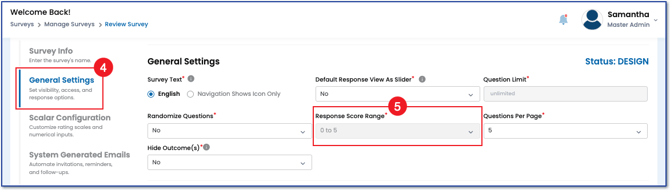
The Response Score Range (RSR) of your survey must be set to allow negative values. The RSR is found with the survey attributes when you first create –or return to edit– the survey settings.
- Navigate to the main navigation sidebar, expand Surveys, choose Manage Surveys.
- Choose Create New
- Or find the survey you wish to edit and choose the pencil icon
- Choose General Settings
- Expand the RSR dropdown menu and choose a range that includes negative numbers.