.png?height=120&name=Profile%20Blue(2).png)
In this article learn how to access saved reports efficiently in Metolius, enabling users to retrieve and utilize stored data for analysis and decision-making processes effectively.
Once there are responses to your assessment, both data analysis and reporting are immediate within Metolius.
It all starts with analysis, any combination of data that you can imagine is possible with just a few clicks. Comparisons can be done on the Outcome, Intention, and Practice level, on the Department and Participant level, and filtered by demographic question responses.
Comparative data sets can be saved as reference data to compare against each other, and as Benchmarks to compare against the same assessment taken over time. Reports on all these comparisons can be created and saved.
1) Once your reports have been created and saved, return to them by selecting Reports > My Reports. See this article on how to create your reports.
2) All report types will be listed. Selecting one will bring you to all your saved reports of that type.
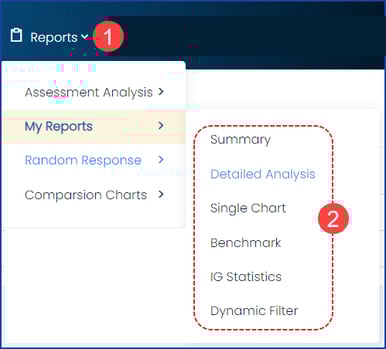 Accessing Saved Reports
 3) After selecting a chart type, the list of reports will populate. From left to right the columns offer the following information:
- The number of reports saved
- The report name
- The date the report was initially ran
- The filter attributes
- The status of the report: Draft or Published
- Actions you can take on the reports: Edit, Preview, Publish, and Delete.
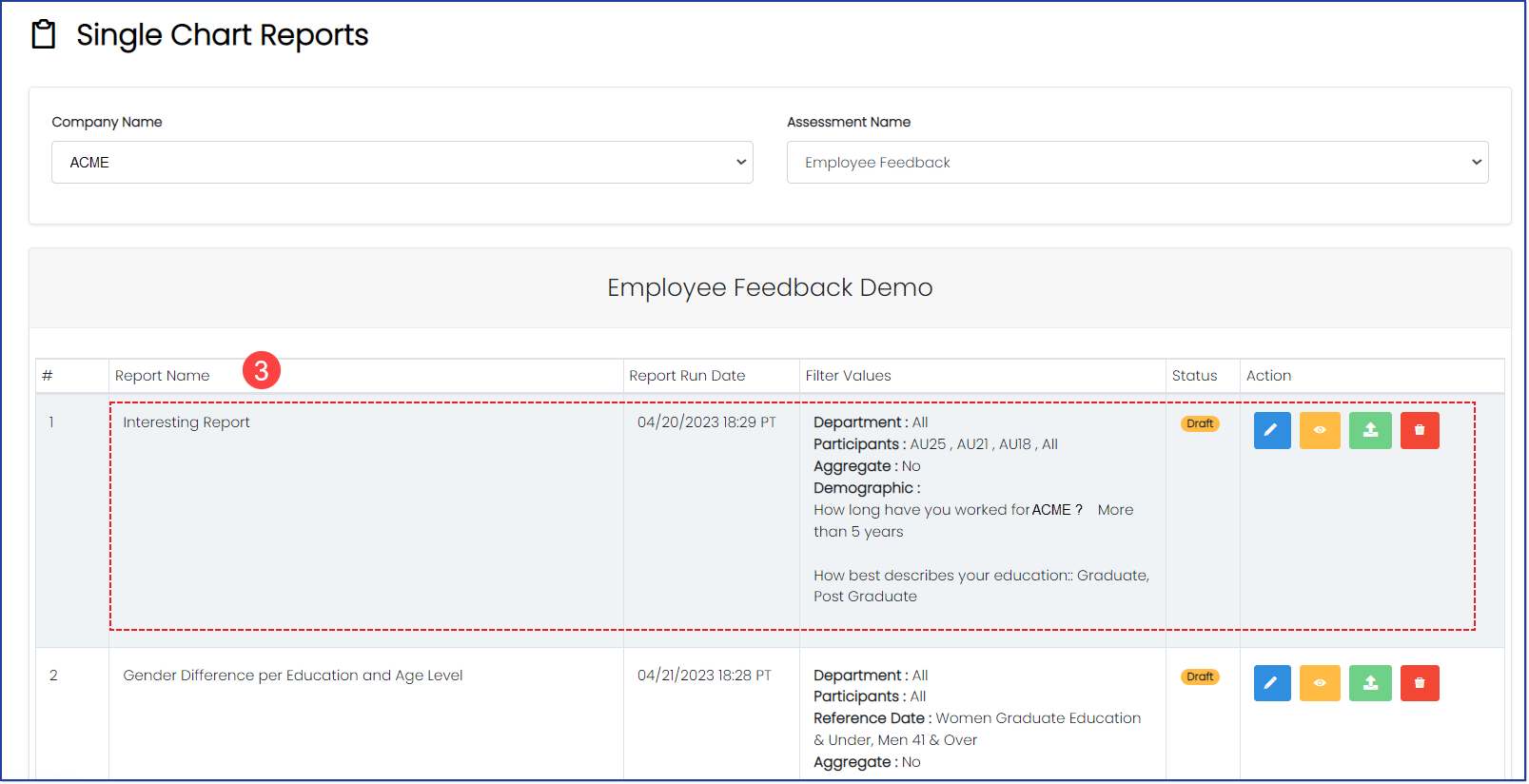 Saved Reports List