.png?height=120&name=Profile%20Blue(2).png)
Learn how to edit and delete schedules with ease.
IMPORTANT: Scheduling an assessment is only available to those on the Professional and Enterprise plans.
After scheduling your Assessment, you have the flexibility to modify its attributes until 24 hours prior to its scheduled release. Note that if you have chosen to send a pre-start email, the 24-hour modification window applies before that email is scheduled to be sent.
Read more on how to create a schedule.
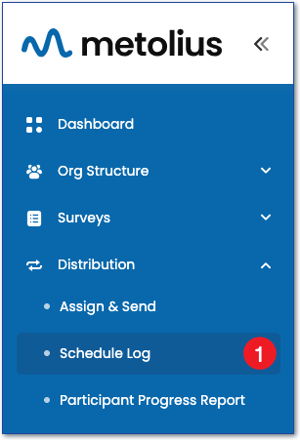
- On the left side navigation, expand the Distribution menu and choose Schedule Log.
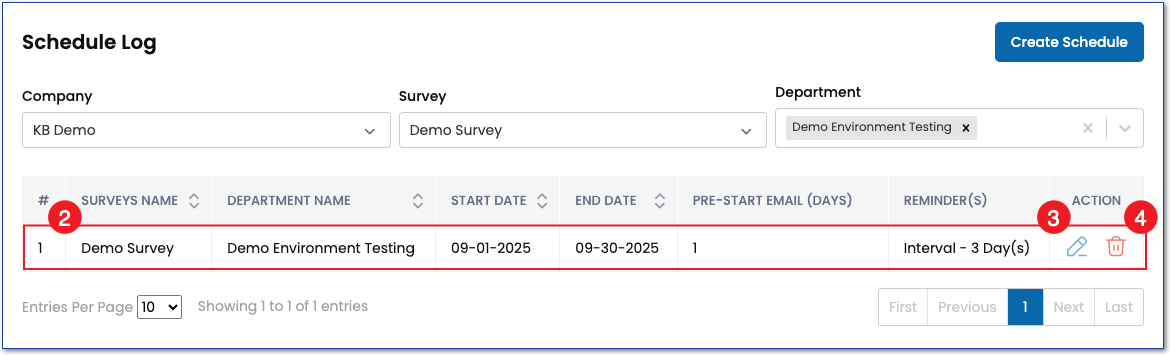
- On the Schedule Log page, find the survey that has the schedule you wish to edit or delete.
- Click the blue pencil icon in the Action menu to edit the schedule options.
- Click the red trash icon in the Action menu to delete the schedule.