.png?height=120&name=Profile%20Blue(2).png)
Details of the components involved in creating questions within a survey, including intention setting, response types, display options, and adding questions to resources for future use.
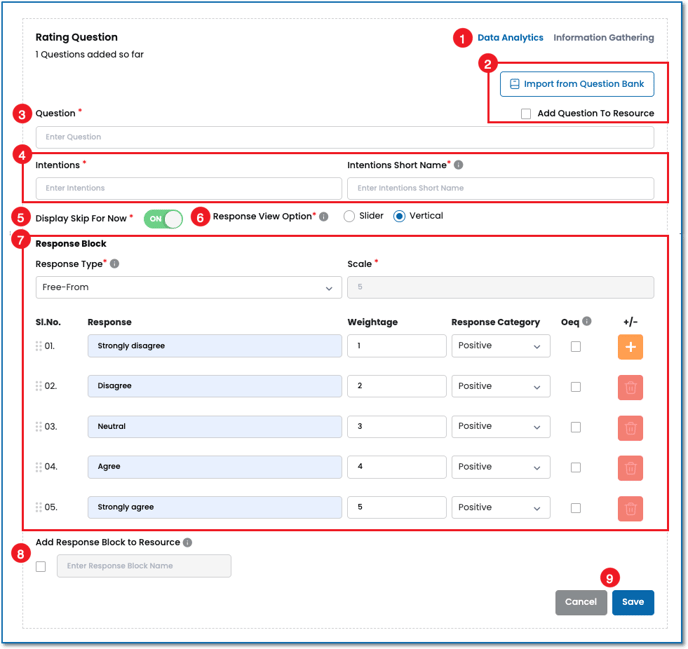
When adding questions to an outcome, several question components must be completed. Generally these components are present for all questions types. However, their will be slight differences. For example, an information gathering question will not have a numerical values associated to the response options as it is only gathering statistical data. See this article for a list of each question type and links to their respective articles. For reference, the numbered items below relate to the labeled screenshot below which is an analytic rating question.
- Question Type
First, choose the question type appropriate for your need, Data Analytics or Information Gathering. In short, the data analytics type has a numerical value connected to the response options while information gathering questions do not. Read this article to learn how these two question types either create survey scoring or simple statistics. - Import from Question Bank / Add Question to Resources
Either insert a question from the Metolius Resources or the questions you have saved to the My Resources section. Alternatively, you can save the question you build to the My Resources section by checking the box next to Add Question to Resources and you will have the option to use it later in another survey. - Question
Add your question into the text box. - Intention and Intention Short Name
This is where you define the intentions within your outcome. Best practice is to have your survey written out beforehand and refer to it when building it within Metolius. See this article for further explanation of Intentions. - Display Skip for Now: Choose to display the Skip for Now option to the participant, allowing the participant to temporarily skip the question. Note all questions require a response.
- Response View Option: Show the responses as a horizontal slider or vertical radio buttons.
- Response Block - The response block holds several items that tie together. These will be slightly different for a data analytic versus an information gathering question type.
- Response Type - Choosing Free Form allows you to create your response options. OR choose one of the many built-in options Metolius provides to streamline question building.
- Scale - Based on the amount of responses inserted, the scale represents the qualitative measurement. This fills in automatically based on the number of responses provided to the participant.
- Response - Fill in your response options or if you choose a built-in option then these will be automatically filled in by the choice you make in the Response Type dropdown.
- Value - This column represents the response value. If you choose a built-in response option from the Response Type dropdown the associated values will auto populate. Otherwise, as you enter your own responses, the numerical value will adjust based on how many responses you add. These values will correspond to the Scoring Range you selected on the survey attributes page. If you chose a 0-5 range, no matter how many response options you add they will not exceed a numerical value of 5. For more information, see this article on scoring your survey.
- Response Category - Determine the Response Category for each response. See this article for more information on response categories.
- OEQ or Response-Based Open-Ended Question - Should you want to produce an Open-Ended Question based on the response a participant chooses, check the OEQ box associated to that response and an alternate question text box will appear. Add your additional question to the text box and it will pop up for the participant to answer if they choose that response. You can add a Response Based OEQ to any response value.
- Create/Remove a Response - Under "+/-" column, add a response by clicking the plus icon, and delete by clicking the trash can icon.
- Save Response Block to Resources - If you have created a custom response option set, you can save it to the My Resources section for future use in other surveys. To do this, simply select the checkbox labeled Add Response Block to Resource. Once saved, your responses will automatically appear in the Response Type dropdown menu, making them readily accessible to build your next question.
- Cancel / Save - Use these buttons to either cancel or save your question.