.png?height=120&name=Profile%20Blue(2).png)
Access and utilize the schedule log to efficiently review, edit, and delete survey schedules.
If several surveys are scheduled, you can view them as a list in the schedule log.
NOTE: The option to schedule a survey is available to Professional and Enterprise plan level subscribers ONLY.
IMPORTANT: Prior to creating a schedule from this page, you must have published the survey and assigned participants to that survey.
See this article on how to create a schedule.
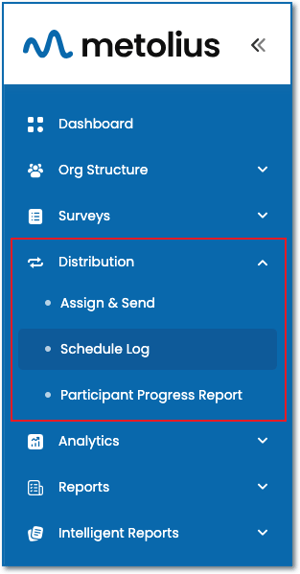
- On the left side navigation, expand the Distribution menu and choose Schedule Log.
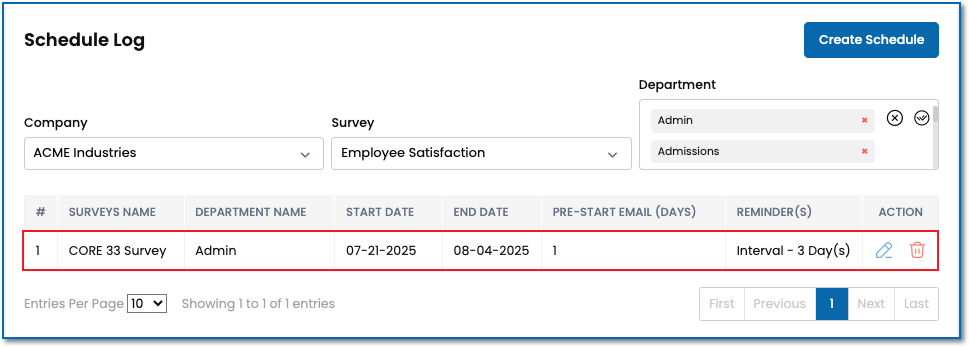
- When the Schedule Log page appears, select a Company (Enterprise subscribers only. All other plans will have their company name pre-populate). Then select a Survey and Department from the dropdown menus to generate the list of schedules for those selections.
 3) Once a schedule is visible, click the pencil icon to edit the schedule, or the trash can icon to delete it.
4) Edit the schedule by adjusting any of the options available and click the Edit Schedule button.
IMPORTANT: You can only edit a schedule up until 24 hours prior to the event start date, whether that is the pre-start email or the assign email. Currently start times for these events are set to 12:00 AM UTC for the start and end dates chosen.