.png?height=120&name=Profile%20Blue(2).png)
Whether you added a participant by mistake, or changed your mind after assigning them with intention, you can use this method to remove a participant from an active survey.
IMPORTANT: Once this action is taken all complete or incomplete responses will be lost.
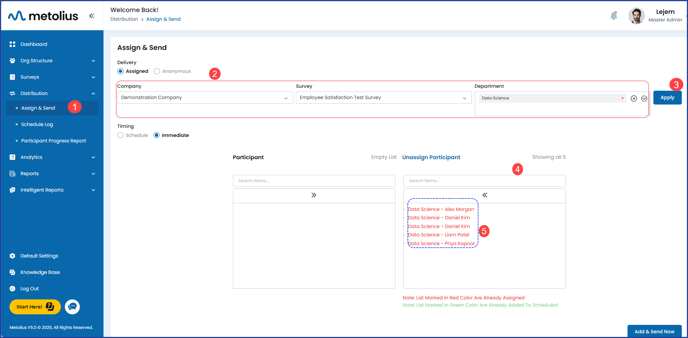
- In the main navigation panel, expand the Distribution menu and click on the Assign & Send menu item.
- Once on the Assign and Send page, use the Survey and Department dropdown menus to choose the related items. If you are on an Enterprise user, first choose the related Company from its dropdown menu.
- Click Apply.
- Scroll down below the list of departments to find the two boxes with participants listed. Those listed on the right in red have been assigned to the survey. Those listed on the left have not been assigned to the survey.
- Ensure the participant (s) you wish to remove are displayed in the right-side box, using the search button if necessary.
- Click on Unassign Participants, found above the right side box.
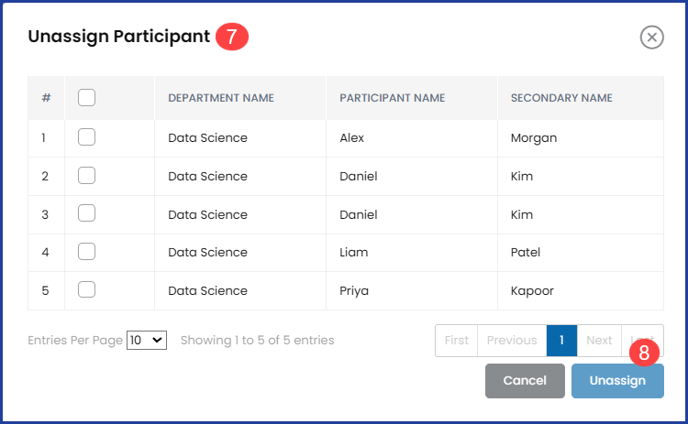
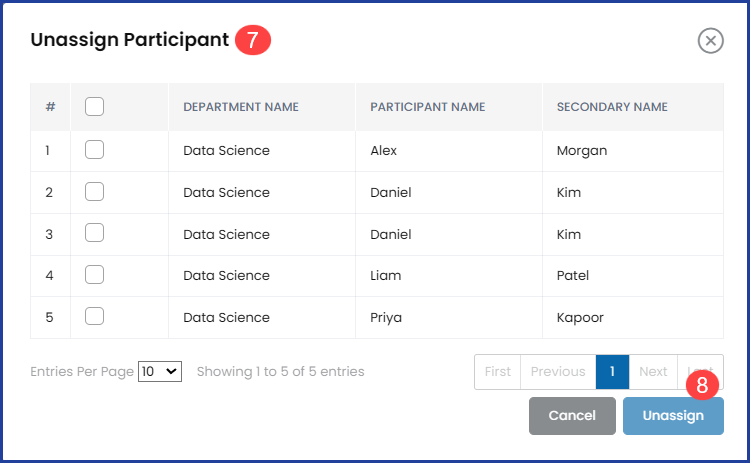
 Within the Unassign Participant dialog box, check the box next to the participant/s you wish to unassign. Or click the box above all names to check them all at once.
- Click unassign. Thereafter, a dialog box will pop up confirming the action. Once completed, navigate back to the main Dashboard.